

Stay informed about your glucose levels and trends with customisable notifications, which may help you spend more time in your target range.1 The Accu-Chek SmartGuide app uses a range of push notifications to help you know when your glucose needs attention. You can personalise them to meet your needs, so you’re always in control.
Why are notifications important?
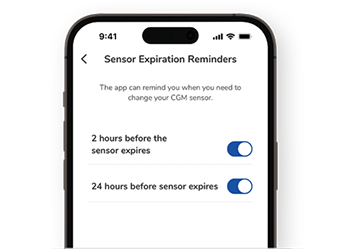
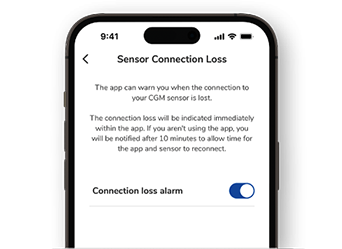
Responding quickly and correctly to changes in your glucose is an integral part of diabetes therapy. Keeping the app notifications enabled helps you get the best support from your Accu-Chek SmartGuide CGM solution. You can view and customise alarms and reminders in the Menu.


How to enable notifications
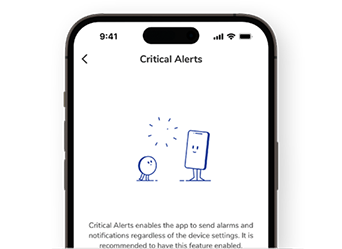
- Tap the Notifications option in your smartphone settings. In the SmartGuide app, enable Notifications and Critical Alerts for iOS and Do Not Disturb Override for Android.
- Navigate back to the SmartGuide app. An icon in the top right corner of the app's Home screen shows whether your notification settings are preventing you from receiving alerts.
There are 3 versions of the icon:

No icon means that you should receive notifications as intended. All good!

A bell with a slash and a red dot means that you will not receive notifications. Tap the icon to learn more and change the settings.

A bell with a slash but no dot means that you’ve previously tapped the icon and read the information but haven’t corrected the setting(s).
Alarm types and reminders

Glucose Alarms
Set alarms for glucose levels higher or lower than your target range.
- Glucose Alarms are enabled by default but can be disabled. This is not recommended for safety reasons.
- You can choose the values that trigger the alarms, but the Very low glucose value is fixed at 3.0 mmoI/L.
- The alarms prompt you to respond when your glucose exceeds your defined limits.
- You can choose a different glucose limit for times when you are asleep. Use Sleep Alarms to limit disturbances during the night.
You’re all set! Next, learn more about the SmartGuide Predict app and its features.
References:
1. Simulation study, study data not published yet, data on file, Roche Diabetes Care GmbH, 2025
How helpful did you find this training?
Continue Training
Previous step

Get in touch
Give us a call
Phone:1800 434 121 (toll free)
Hours: 9:00am to 5:00pm AEST
Monday to Friday excluding public holidays